



Shopping Secure
2015 t/m 2026
Tweakers Awards
2022 t/m 2026
Website of the Year
2025 t/m 2026
HP touch screen laptop
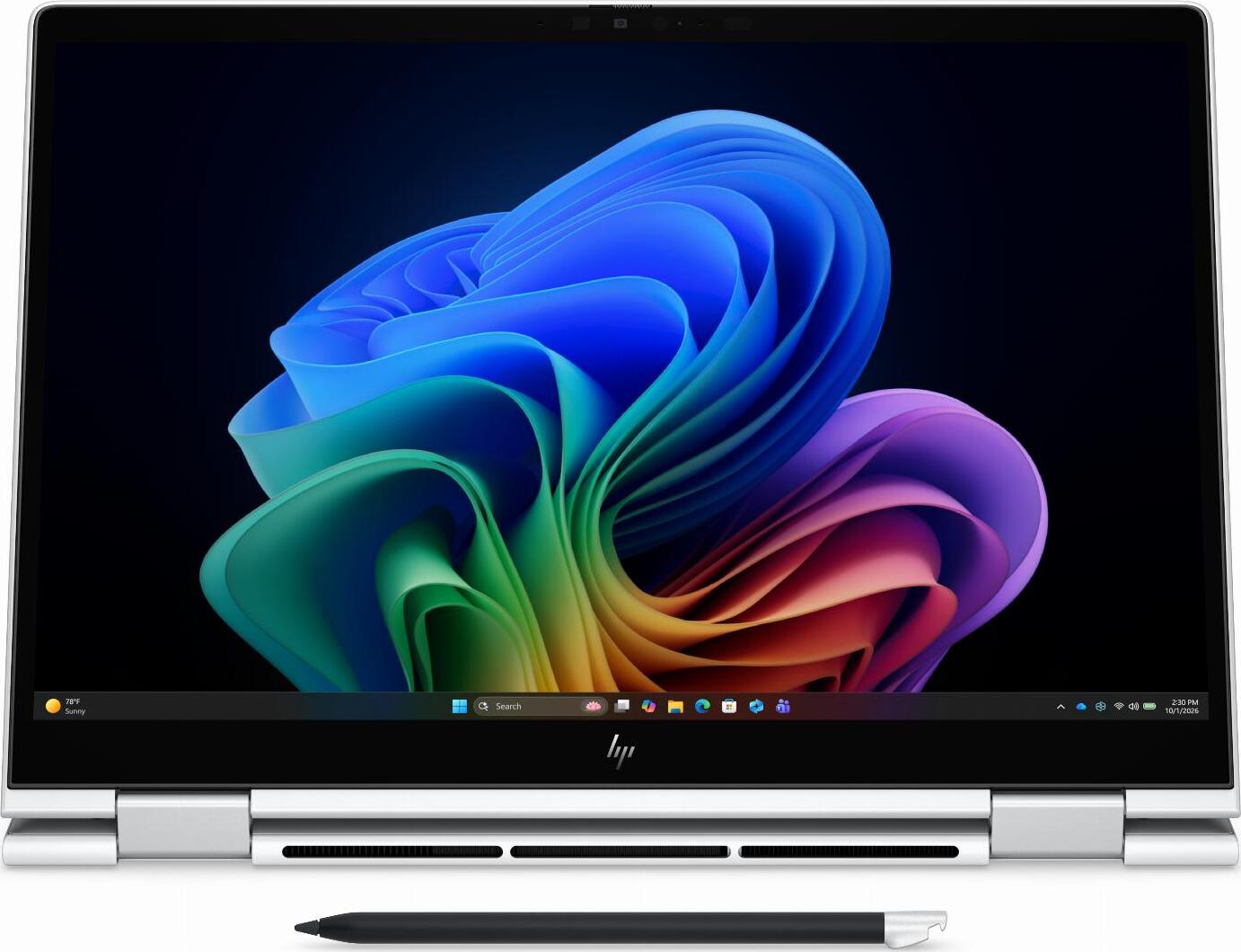
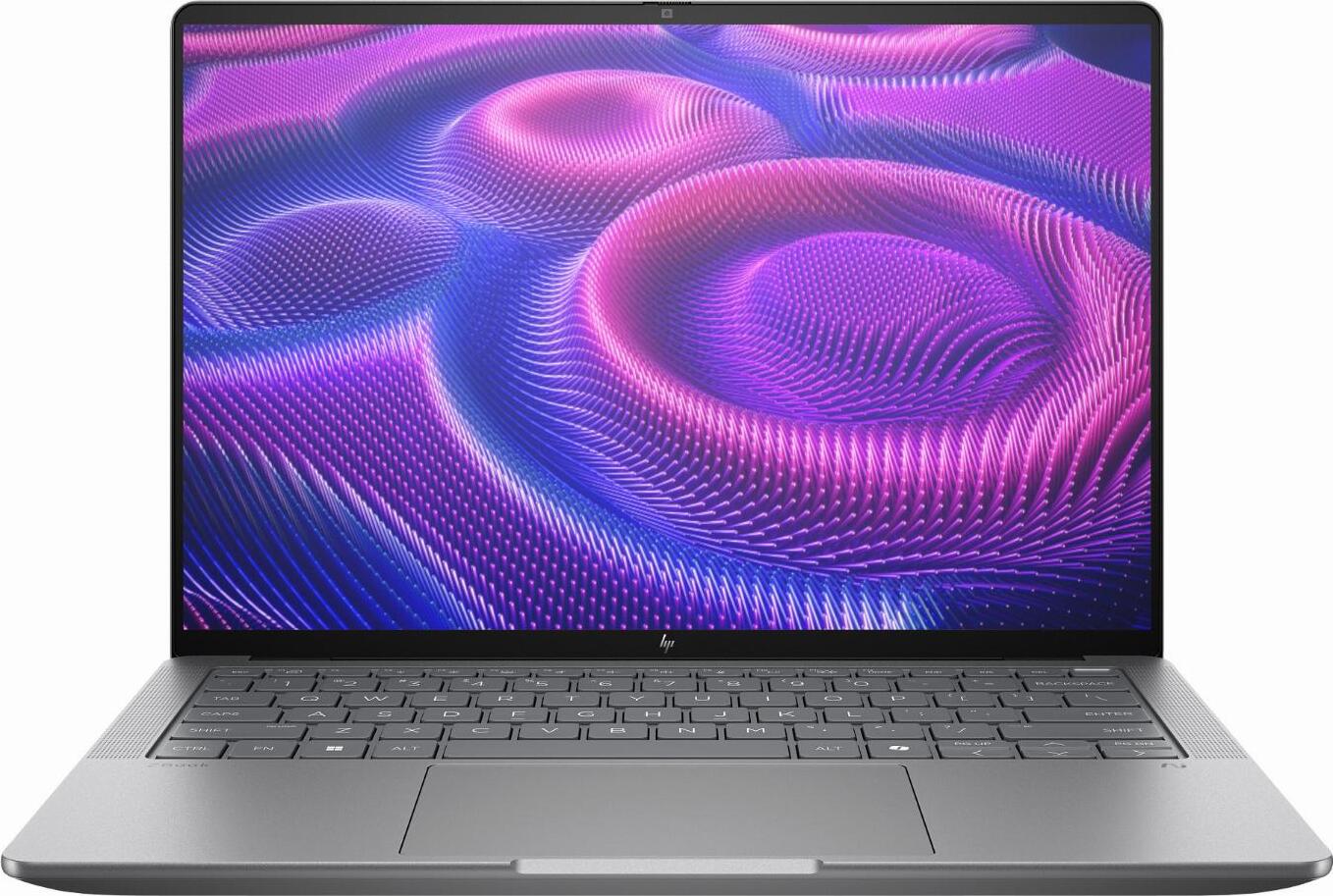
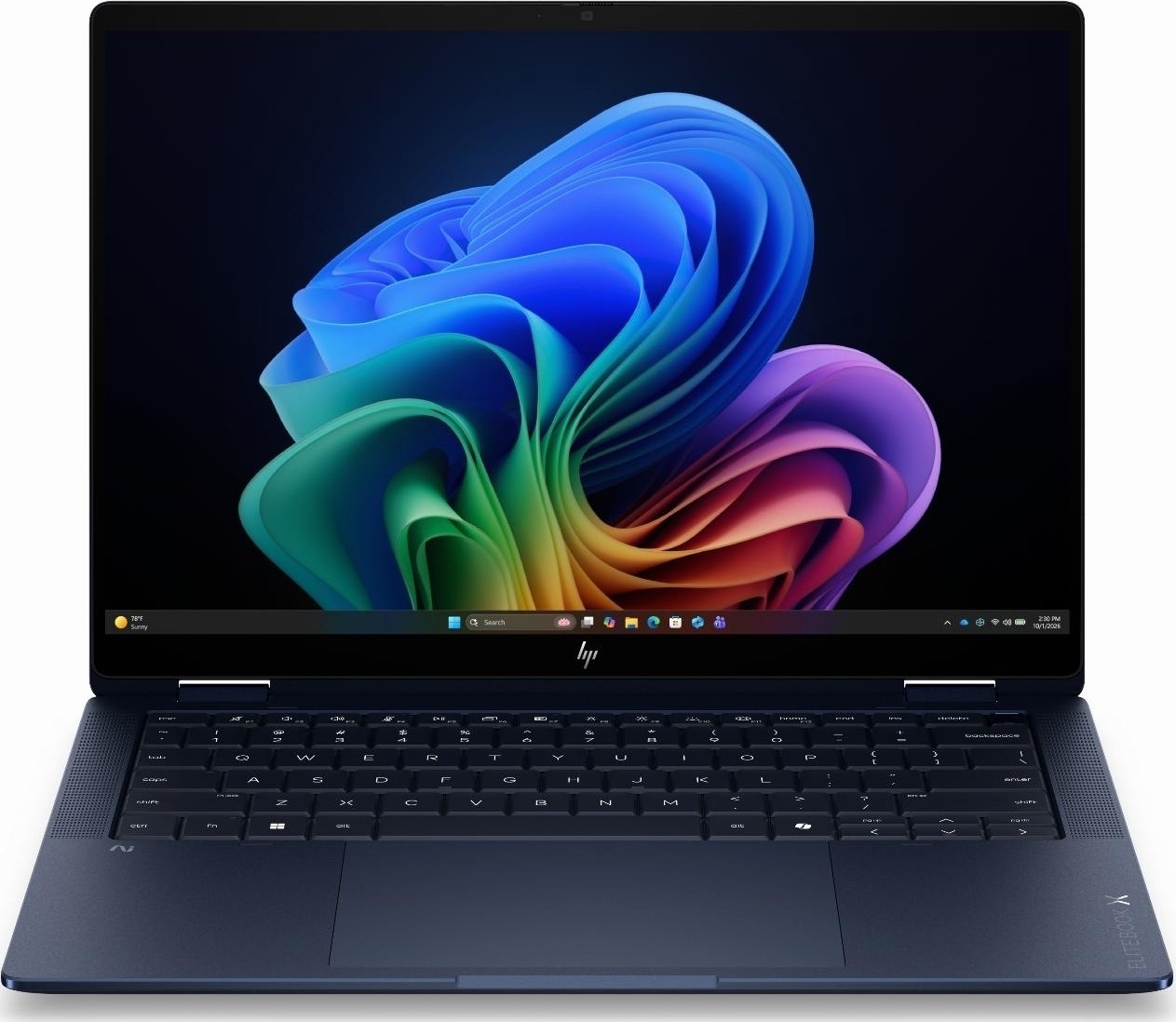
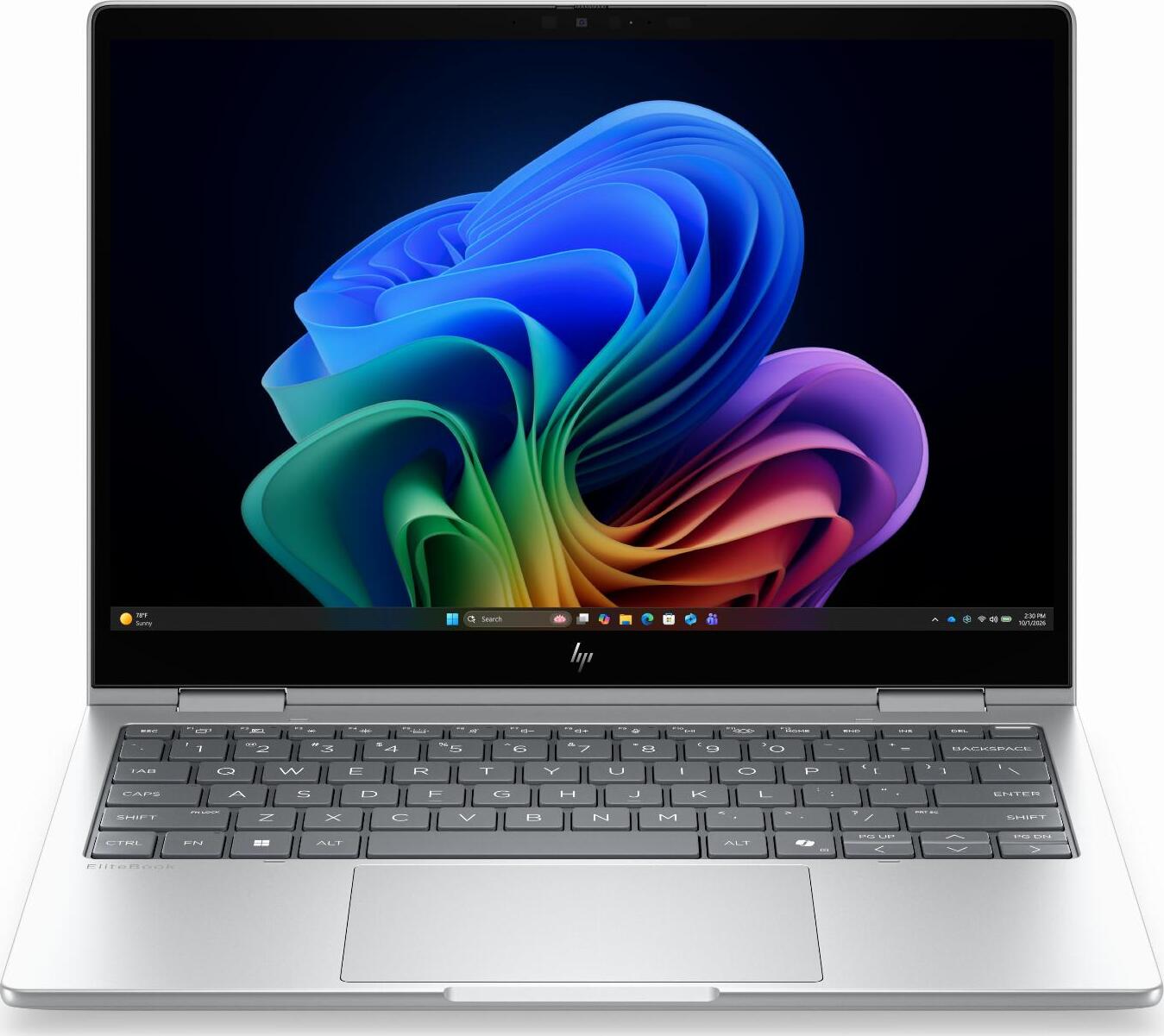
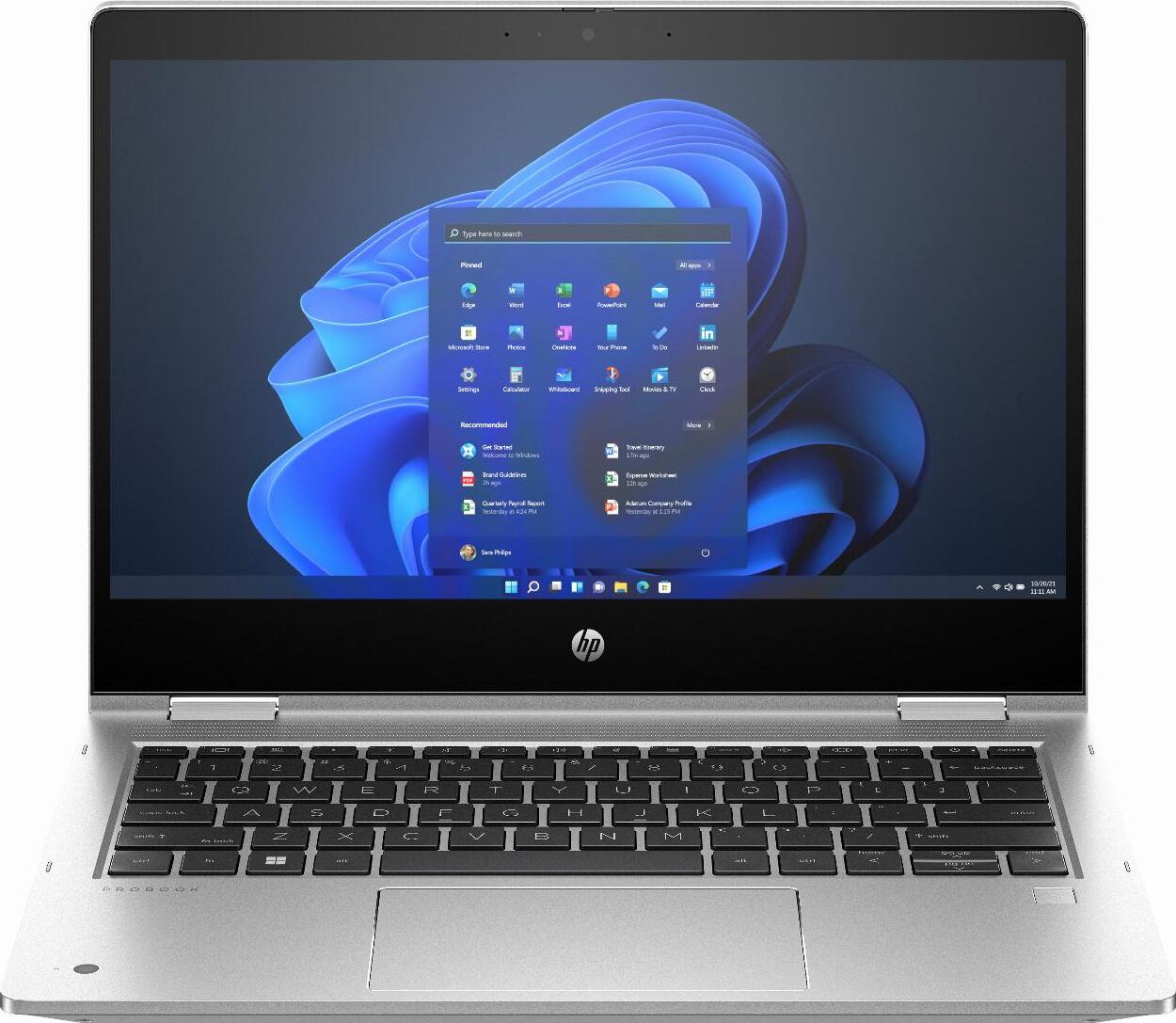
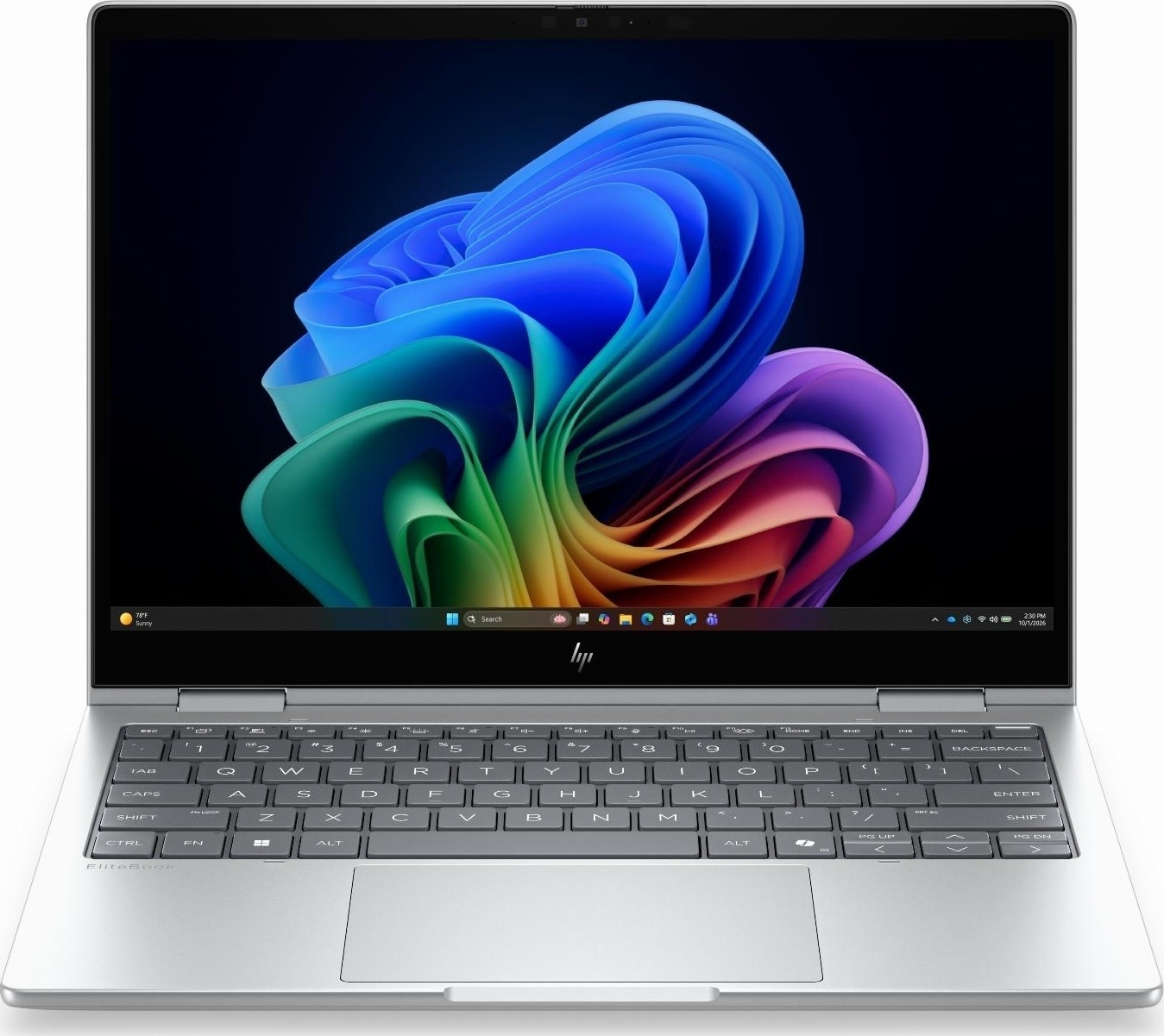
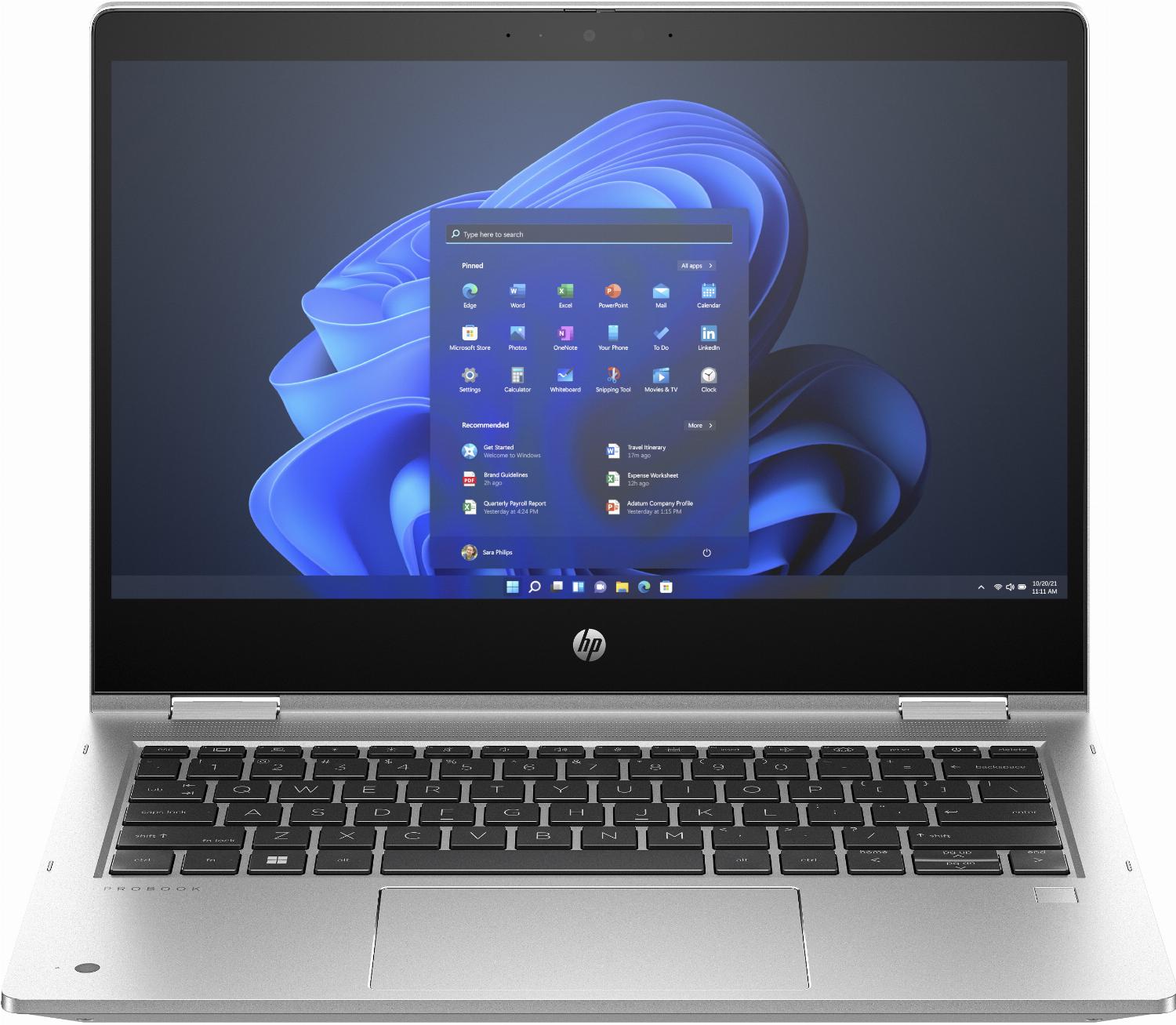
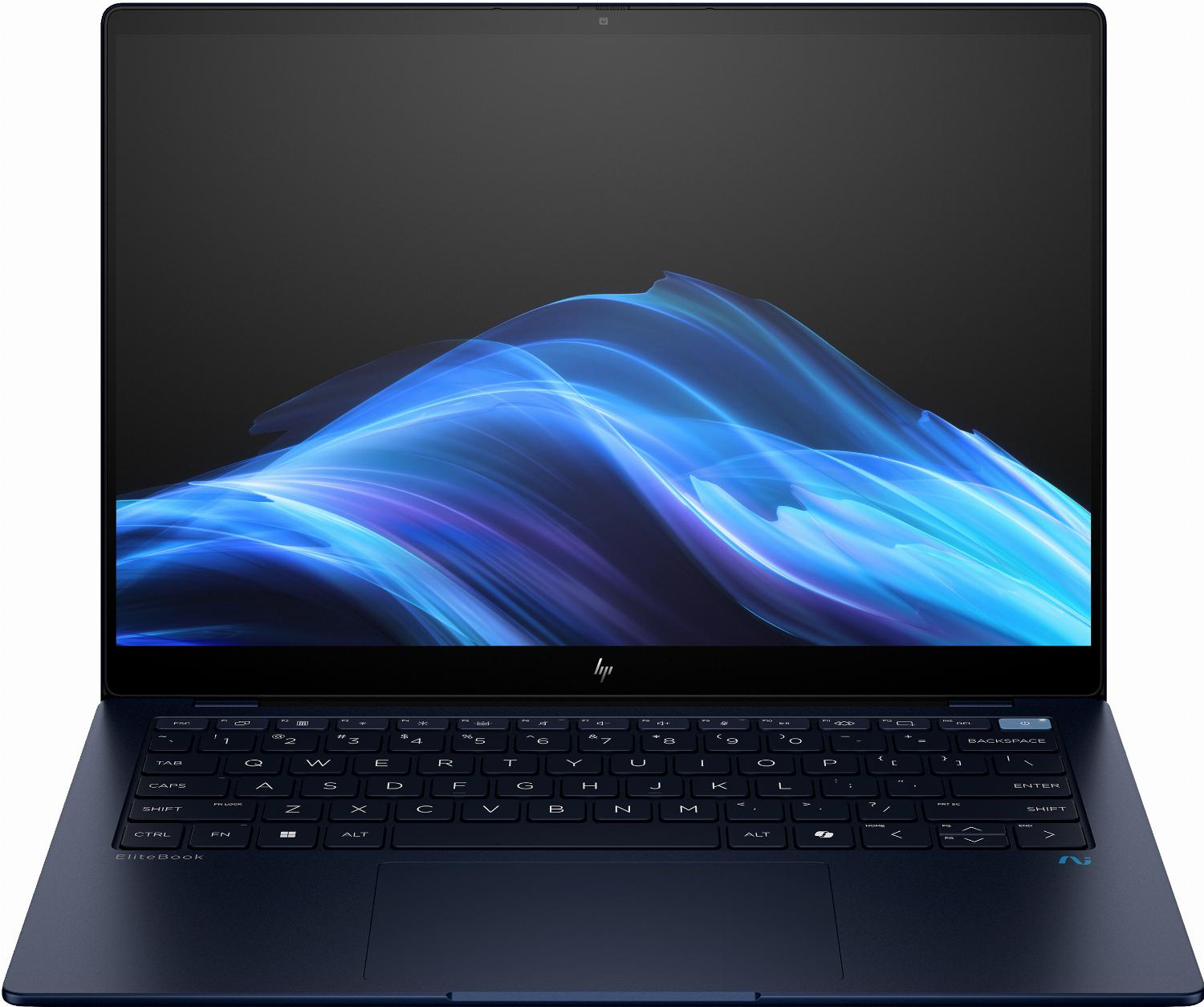
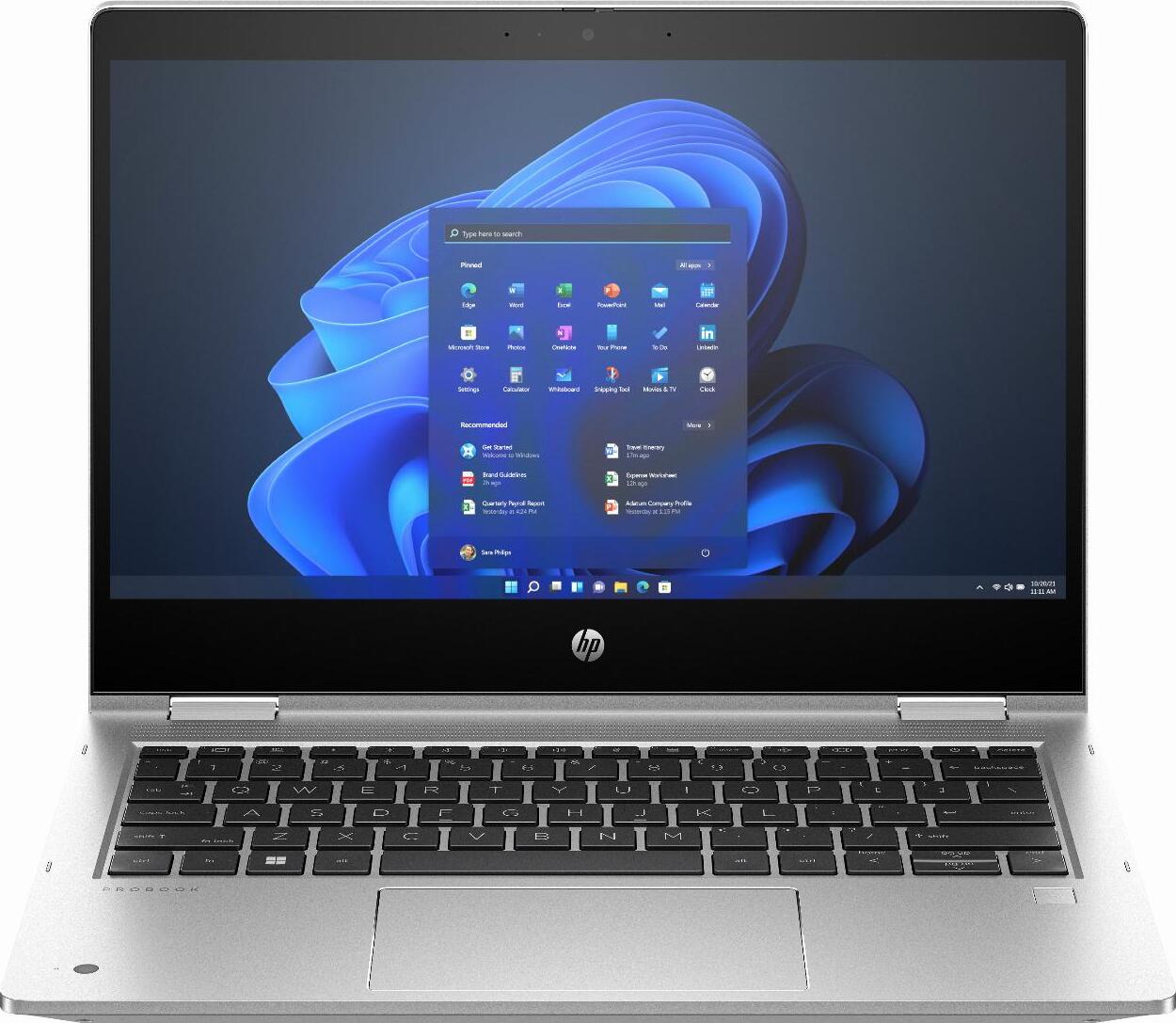
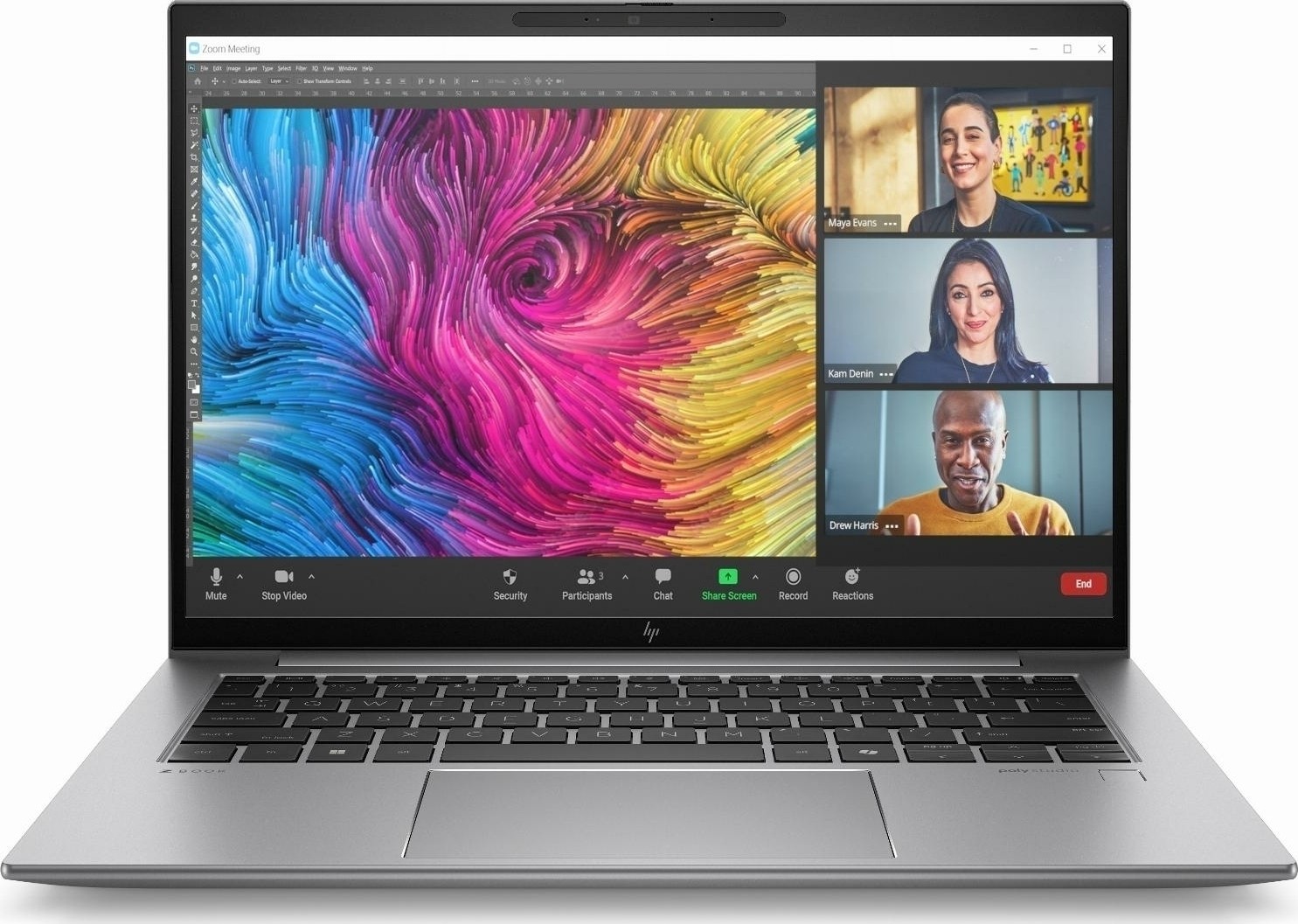
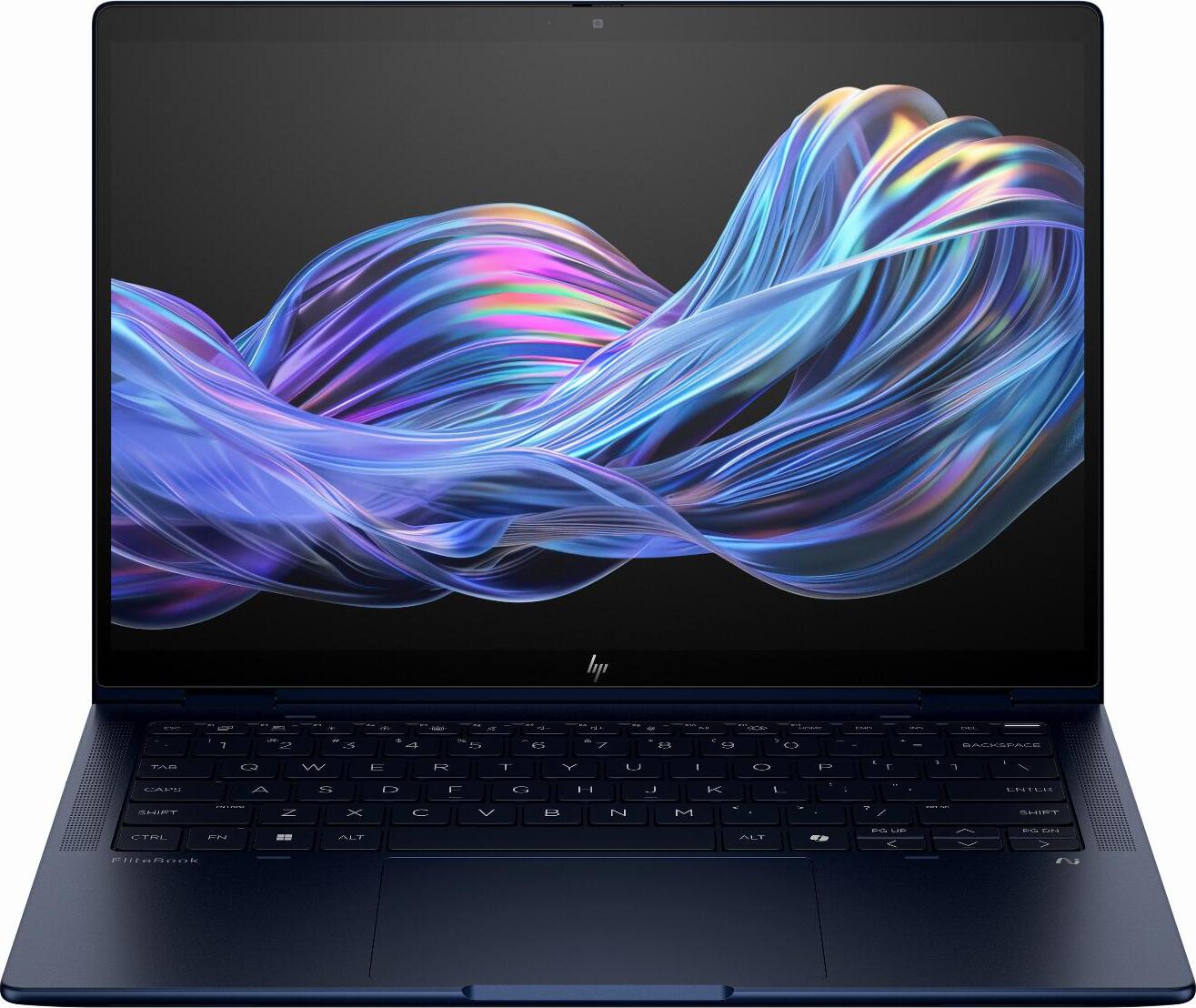
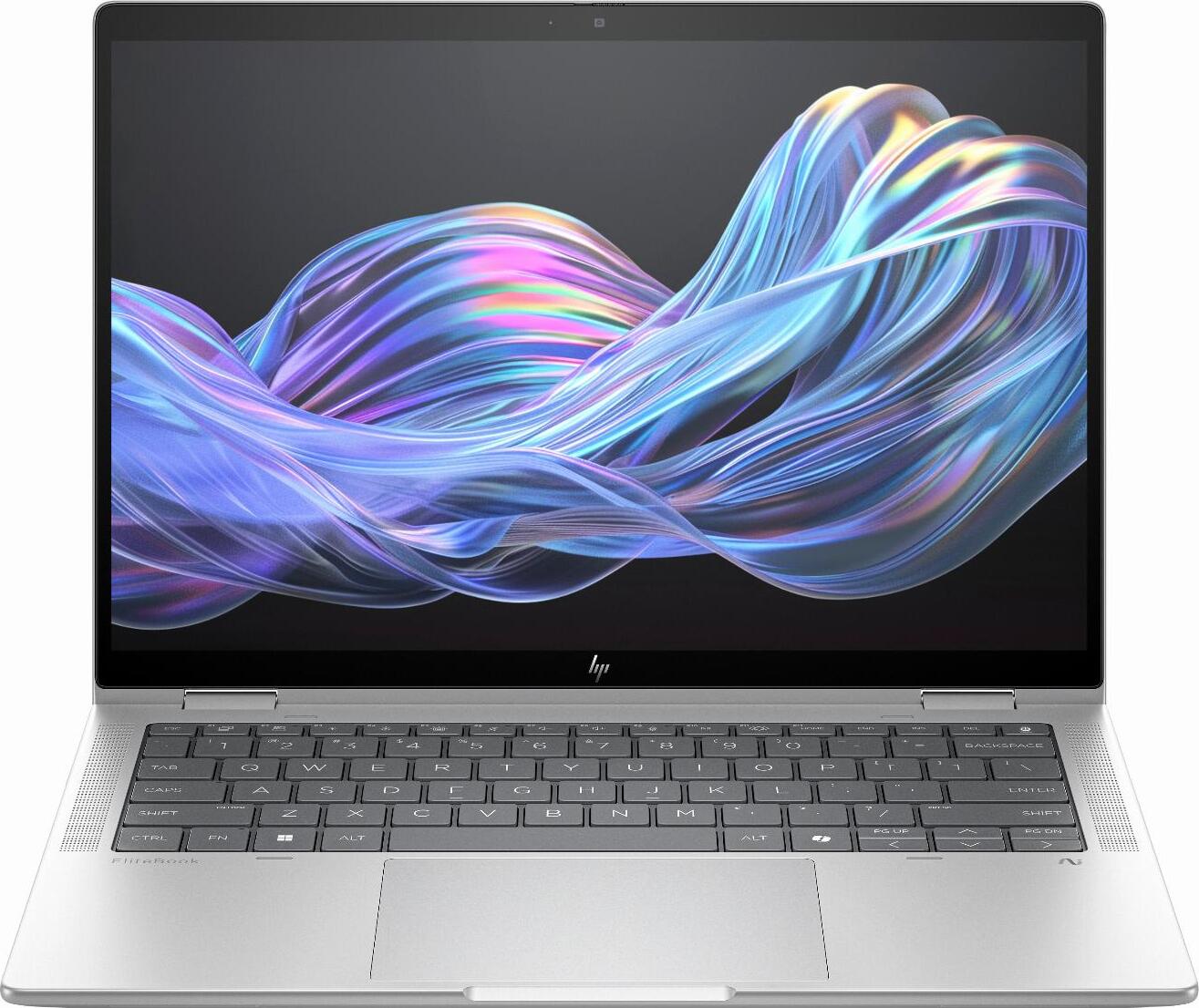
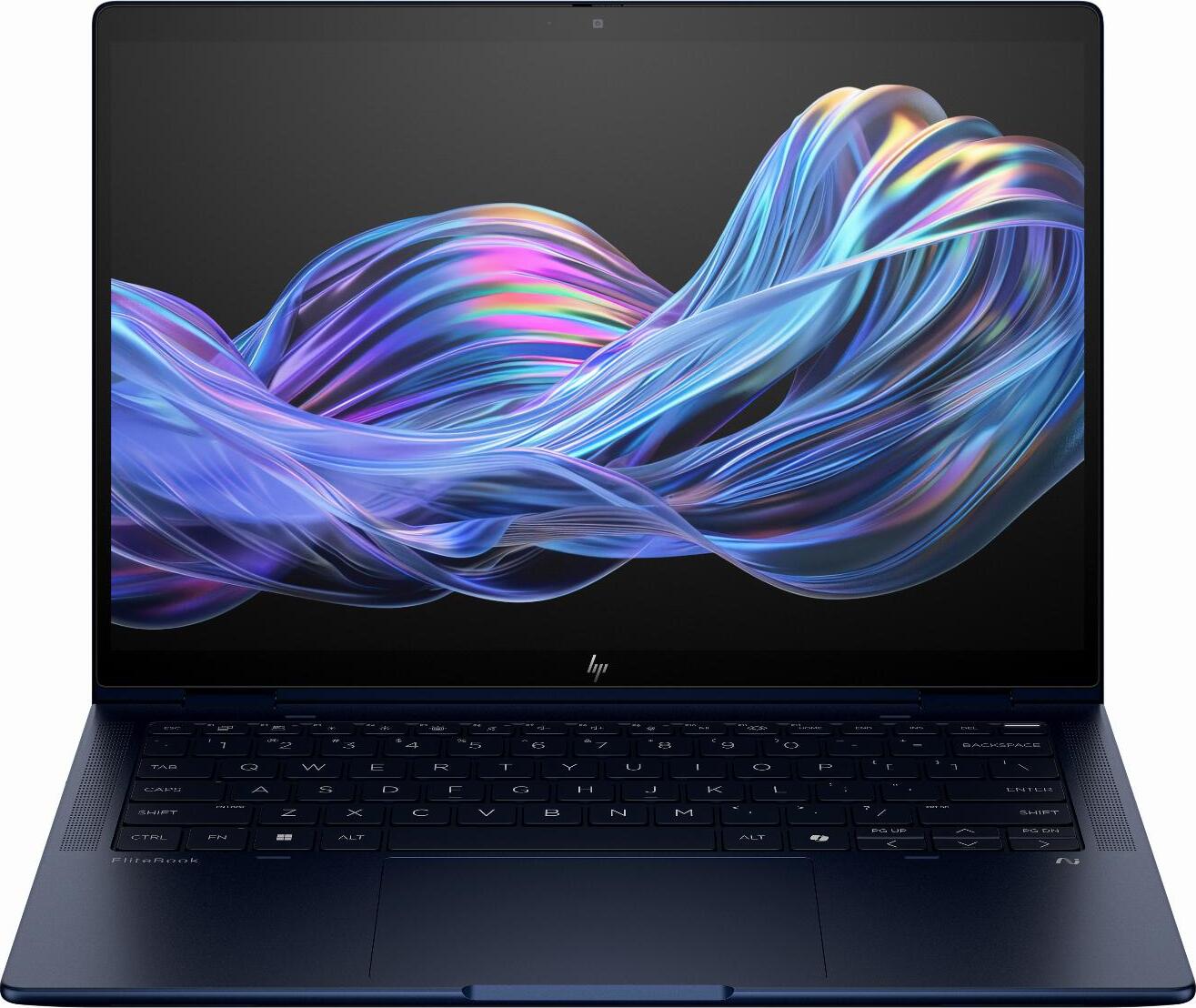
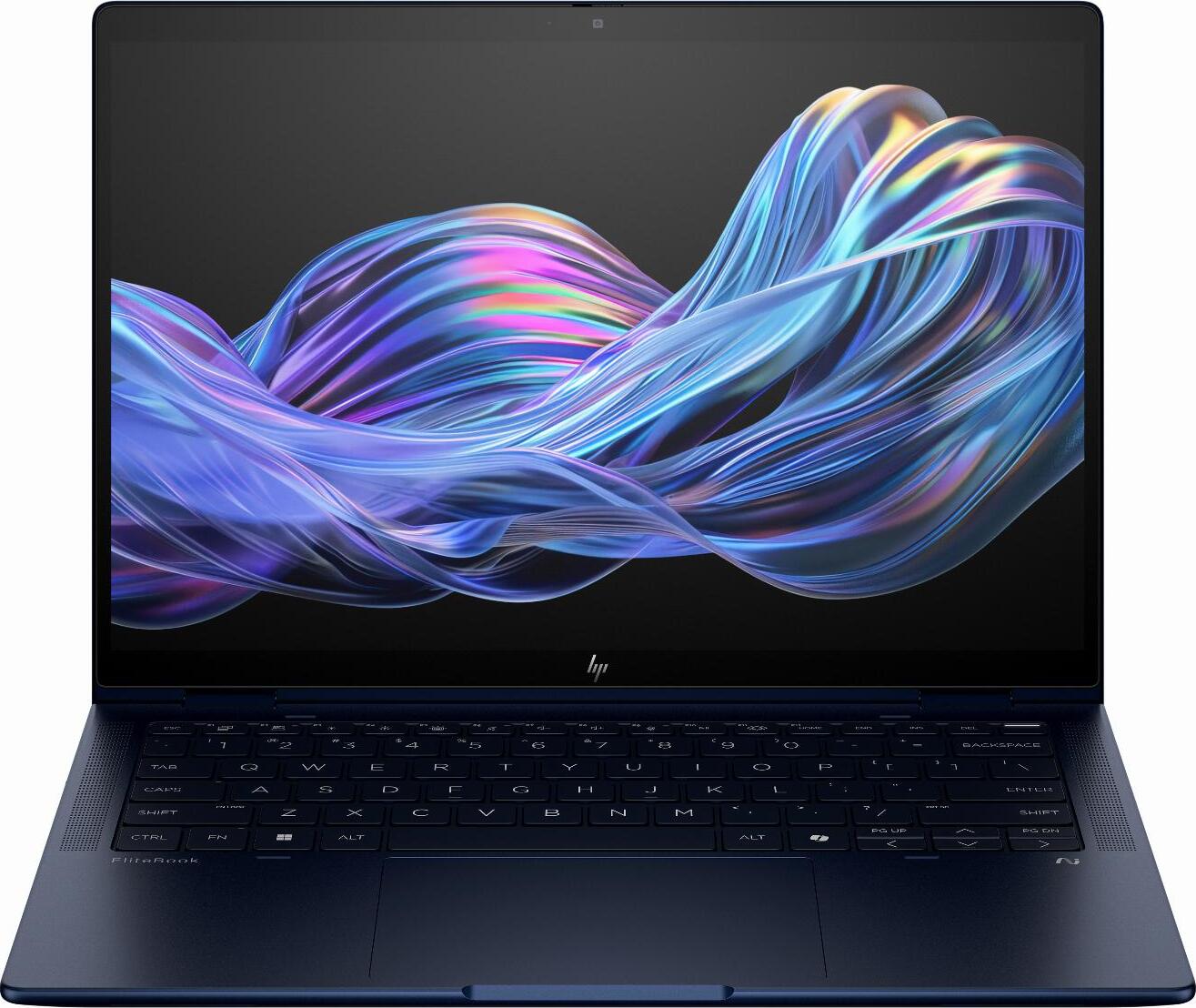
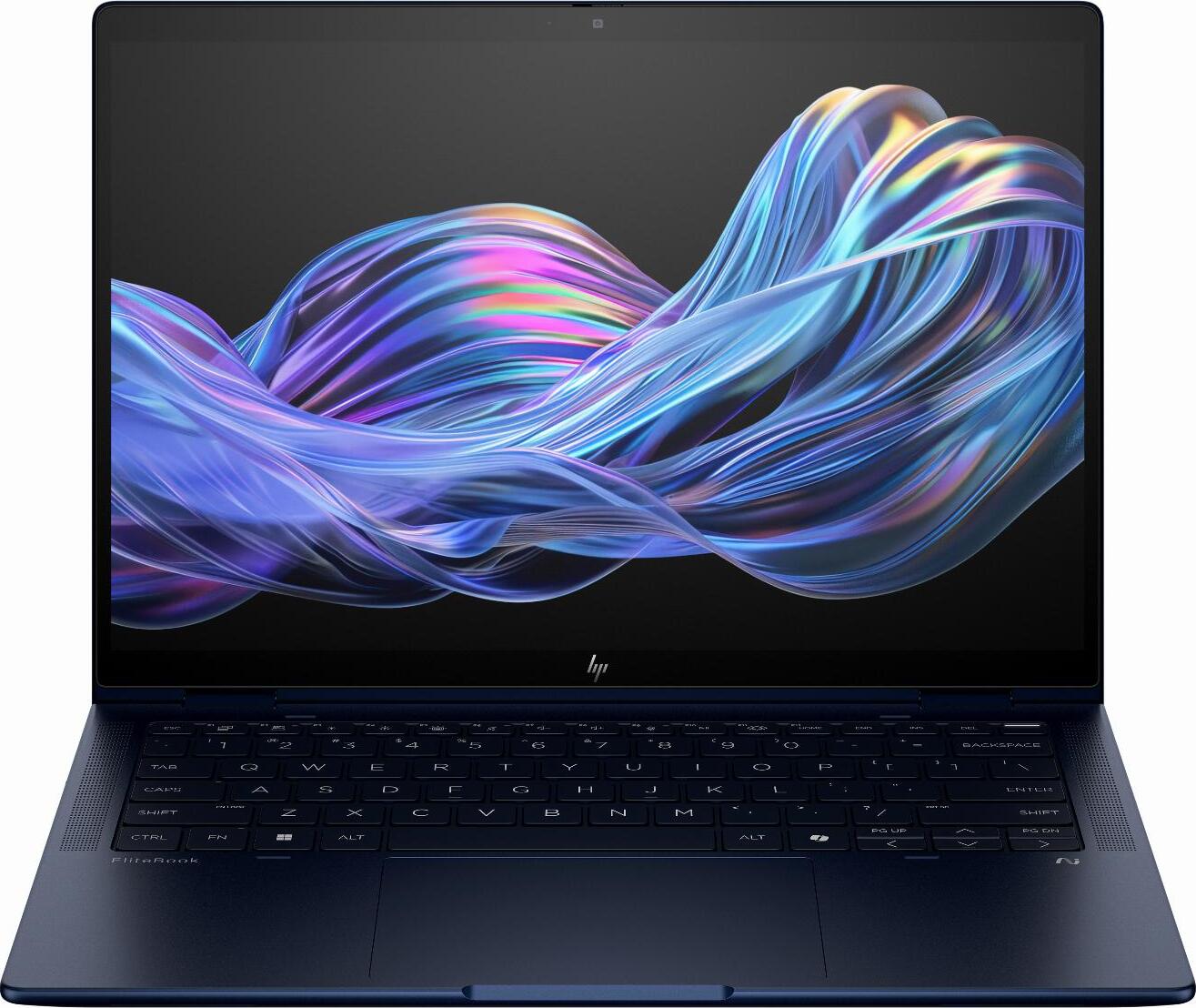
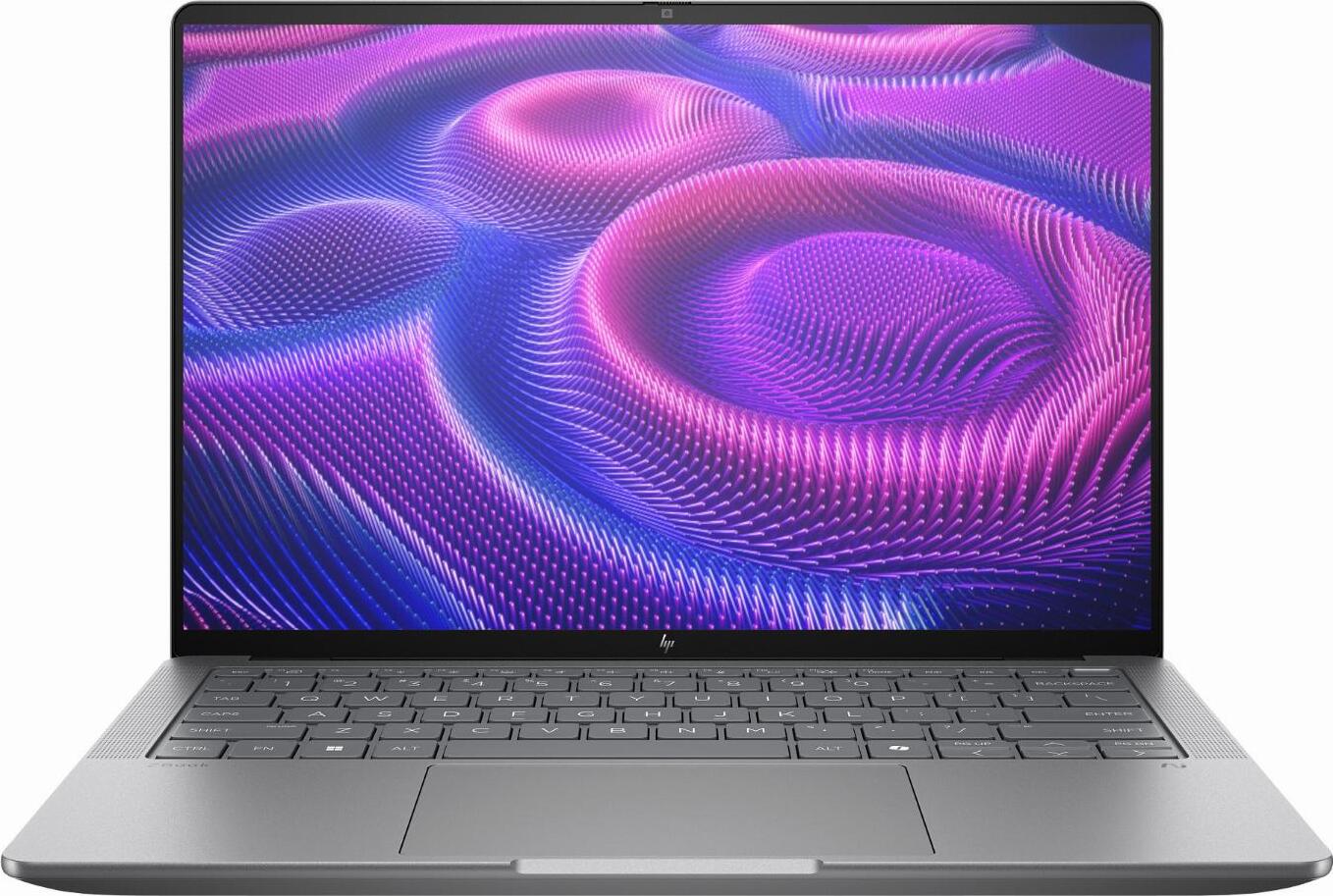
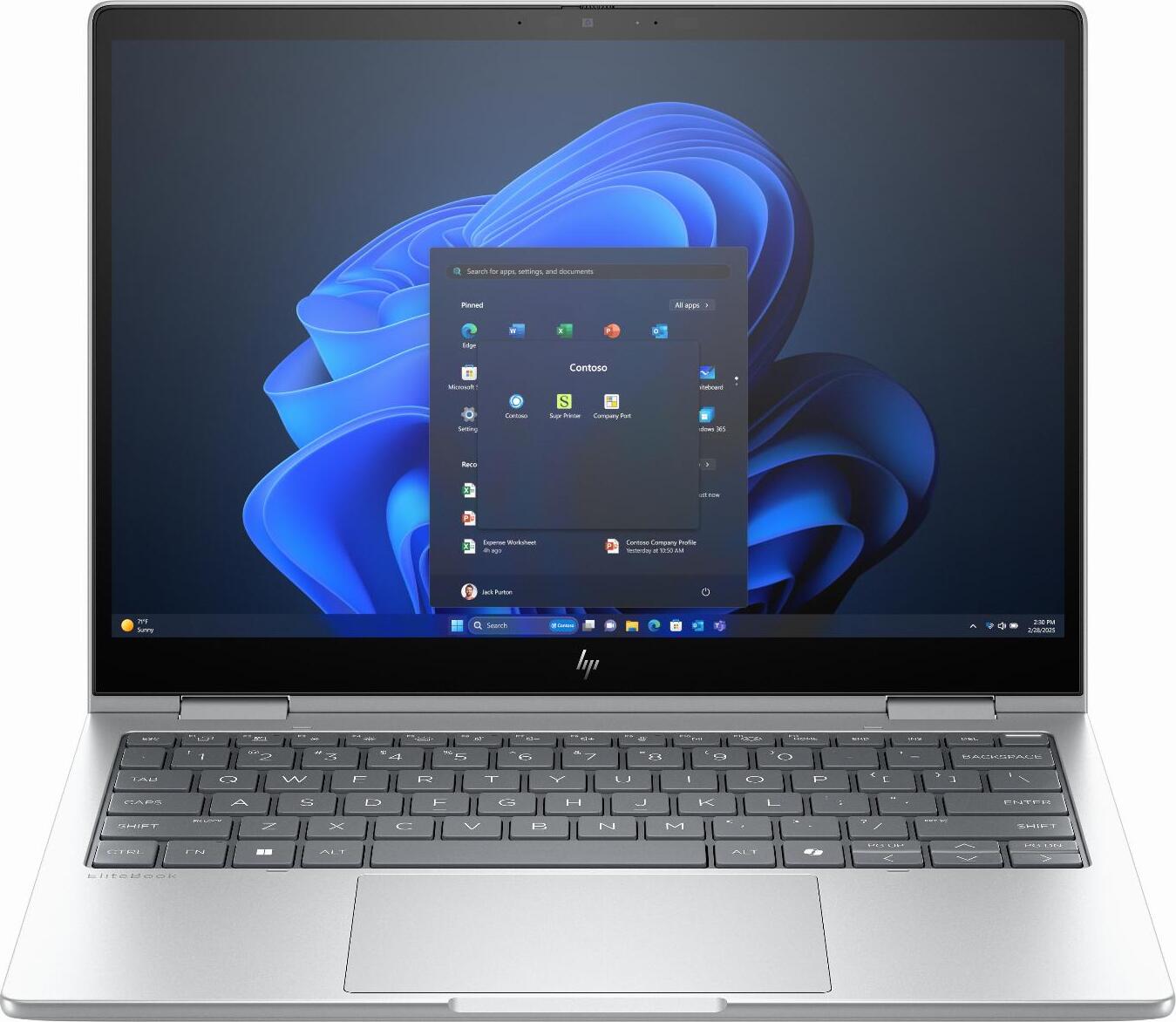
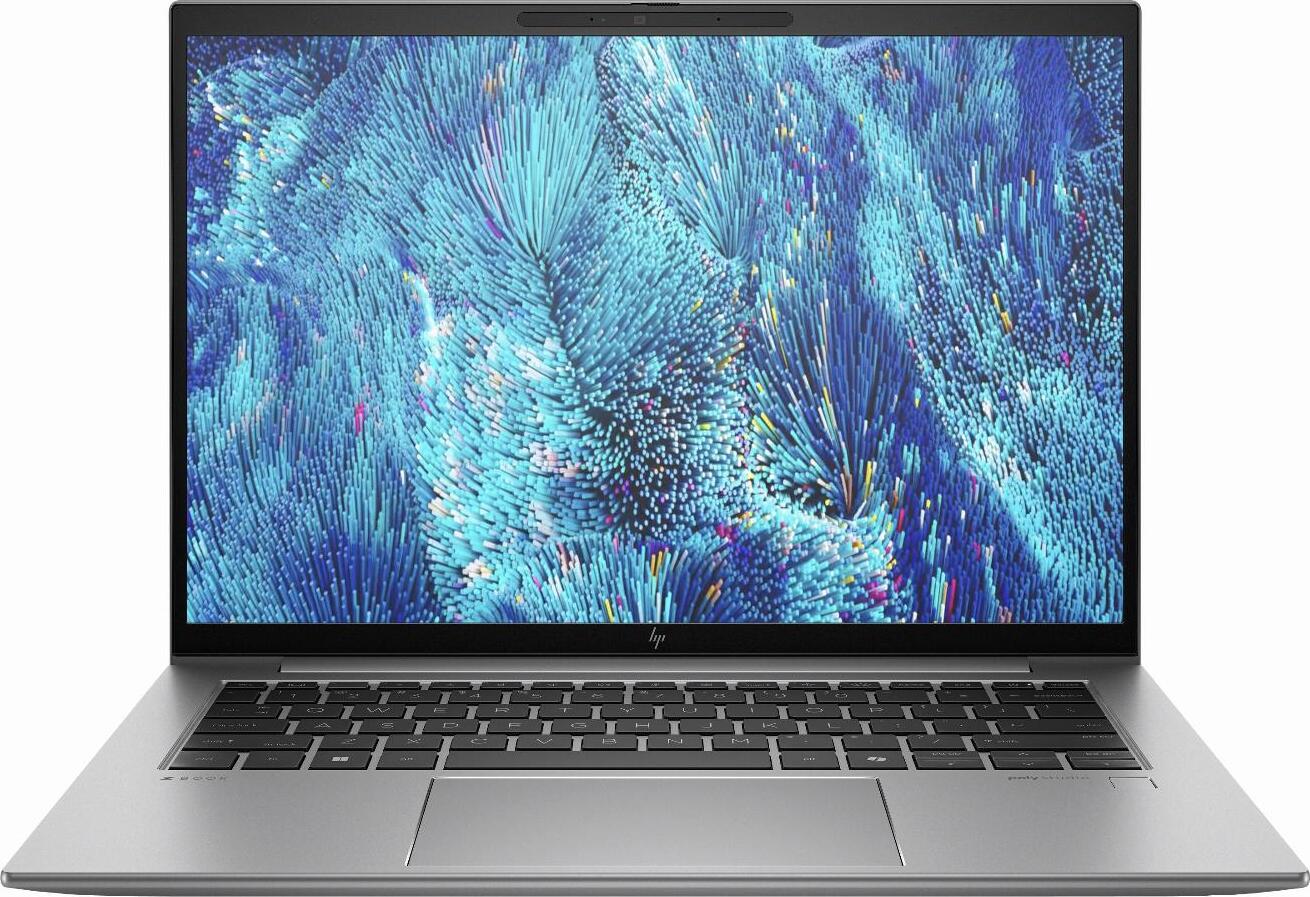
Buy HP laptop with touchscreen? Ideal if you also want to use your laptop as a tablet. Because of the touchscreen you can work with your fingers just like on a smartphone. In addition, you can simply use the keyboard and the touchpad when you start writing texts, for example. Choose an HP laptop with a touchscreen from 13 to 14 inches if you think it's important that your laptop is easy to take with you. Do you work a lot in one place? Then it is wise to opt for an HP laptop with a 15 or 17-inch touchscreen. Because of the larger image, you have more work space on your screen. Ideal as a replacement for your desktop computer.
- 33,8 cm (13.3")
- Intel Core Ultra 5
- 16 GB RAM
- 512 GB SSD
- 35,6 cm (14")
- AMD Ryzen AI Max+ PRO
- 64 GB RAM
- 1 TB SSD
Need help choosing?
How can I help you?
Product list changed. Ask again for these products.
- Ordered before 17.00, shipped for free today
- 14 days reflection period
- 35,6 cm (14")
- Intel Core Ultra 7
- 32 GB RAM
- 1 TB SSD
- 33,8 cm (13.3")
- Intel Core Ultra 7
- 32 GB RAM
- 512 GB SSD
- 33,8 cm (13.3")
- AMD Ryzen™ 3
- 16 GB RAM
- 512 GB SSD
- 33,8 cm (13.3")
- Intel Core Ultra 5
- 16 GB RAM
- 512 GB SSD
- Ordered before 17.00, shipped for free today
- 14 days reflection period
- 35,6 cm (14")
- Intel Core Ultra 5
- 16 GB RAM
- 512 GB SSD
- 35,6 cm (14")
- Intel Core Ultra 7
- 32 GB RAM
- 1 TB SSD
- 35,6 cm (14")
- Intel Core Ultra 7
- 32 GB RAM
- 1 TB SSD
- Ordered before 17.00, shipped for free today
- 14 days reflection period
- 35,6 cm (14")
- Intel Core Ultra 7
- 32 GB RAM
- 1 TB SSD
- 35,6 cm (14")
- Intel Core Ultra 7
- 32 GB RAM
- 1 TB SSD
- 35,6 cm (14")
- AMD Ryzen AI Max+ PRO
- 128 GB RAM
- 2 TB SSD
- 33,8 cm (13.3")
- Intel Core Ultra 5
- 16 GB RAM
- 512 GB SSD
- 33,8 cm (13.3")
- AMD Ryzen™ 7
- 16 GB RAM
- 512 GB SSD
- Ordered before 17.00, shipped for free today
- 14 days reflection period
- 35,6 cm (14")
- Intel Core Ultra 7
- 32 GB RAM
- 1 TB SSD
Need help choosing?(at the end of the list)
How can I help you?
Product list changed. Ask again for these products.
Buy HP laptop touch screen
When you choose an HP laptop with a touchscreen, you benefit from extra flexibility and convenience. You can use the keyboard and touchpad for traditional laptop use, but you can also choose, for example, to rotate the screen or disconnect the keyboard so that you can use the laptop in tablet mode. This offers more flexibility, especially when reading content, watching videos or taking notes. Are you planning to buy an HP laptop touchscreen, but would you rather know more about it first? Then we have listed the most important information for you for your convenience!
Advantages of an HP laptop with touchscreen
There are several reasons why you should consider buying an HP touchscreen laptop. The most important advantages of this are:
1. Interactive: An HP laptop touchscreen offers you an interactive user experience. Thanks to the touchscreen, you can touch the screen directly to, for example, answer emails, open applications or simply surf the internet.
2. Flexibility: as we just mentioned, you can use the laptop in different ways. Depending on your wishes and perhaps also depending on the situation, you can furnish the laptop completely according to your own wishes. For example, do you just want to read something or watch a video? Then you can easily use the laptop in tablet mode. If you are going to perform work such as processing texts, you can easily use the keyboard and touchpad as you are used to with a normal laptop.
3. Creative options: The HP laptop touchscreen is also an ideal laptop for graphic work. You can use a stylus or your finger to draw, sketch or make notes on the screen. This can be useful for graphic designers, students, or anyone who likes to get creative on a digital platform.
4. Efficiency: A touchscreen is very easy to use, so you can work very efficiently on it. You can quickly and easily select, highlight, copy and paste using your finger. This is especially useful when working with documents, spreadsheets, or presentations.
How to enable touchscreen on HP laptop?
Have you just received your new laptop and want to turn on your touchscreen? Then simply follow the steps below to turn on the touchscreen:
1. Go to the Start menu in Windows. You can do this by clicking the Windows button in the bottom left corner of the screen or by pressing the Windows key on the keyboard.
2. Type "Control Panel" in the search box and select the corresponding option from the search results. This opens the Control Panel.
3. In the Control Panel you can find a list of different categories. Look for the "Hardware and Sound" category and click on it.
4. In the "Hardware and Sound" category, look for the "Pen and touch" option. Click it to open the pen and touch devices control panel.
5. In the pen and touch devices control panel, you will see the "Touch screen" tab. Click this tab.
6. Within the "Touch screen" tab you will see a section called "Select and configure your touch screen". Click the "Settings" button.
7. Now a window titled "Configure your touch screen" will appear. Here you can enable the touchscreen of your HP laptop. Make sure the "Enable touch" option is checked. You can also adjust other settings, such as the accuracy of the touch input.
8. Click "Apply" and then "OK" to save the changes and close the window.
After following these steps, your HP laptop's touchscreen should be enabled. You can now touch the screen to interact with the laptop. Please note that the settings may vary slightly depending on the specific model and operating system of your HP laptop